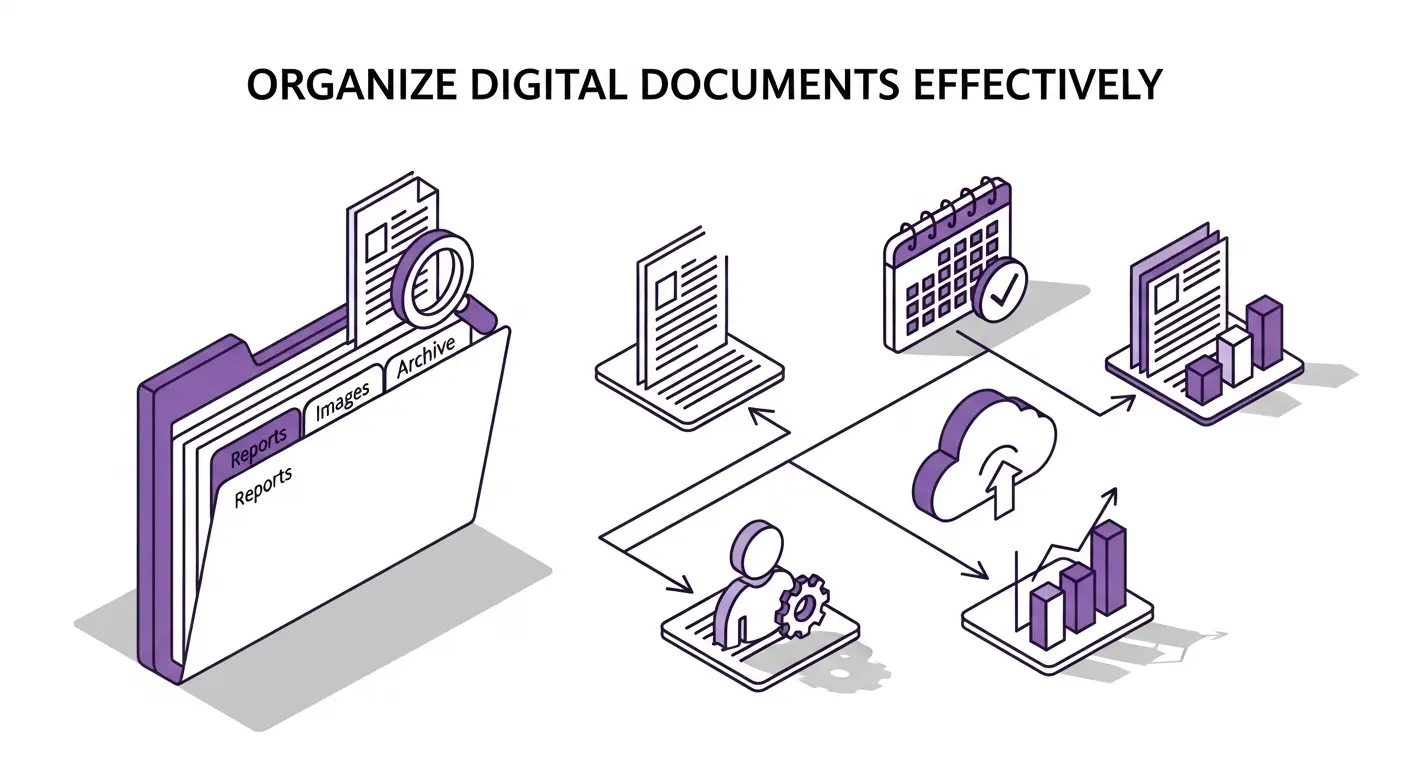
Digital documents pile up quickly. Scanned receipts, downloaded invoices, PDF contracts, photos of forms, and countless other files accumulate faster than you can organize them. Without a system, finding specific documents becomes frustrating and time-consuming.
Effective digital document organization makes finding files effortless, eliminates duplicates and clutter, protects important documents from loss, and saves time searching for information. In this guide, we'll show you how to build and maintain a document organization system that actually works.
The Foundation of Good Organization
Every effective organization system starts with clear principles. Consistency matters most. Choose an organization scheme and stick with it. Switching between different approaches creates confusion and defeats the purpose of organizing.
Simplicity keeps systems maintainable. Complex folder structures with dozens of categories and subcategories sound good in theory but become overwhelming in practice. Simpler structures with broader categories are easier to maintain and often just as effective.
Search-friendly naming and storage make documents findable. Descriptive filenames, searchable text content, and tags enable finding documents through search rather than remembering exactly where you filed them.
Regular maintenance prevents disorganization from creeping back. Schedule time weekly or monthly to file new documents, delete unnecessary files, and verify your system still works for your needs.
Choosing an Organization Structure
Several organizational approaches work well for documents. Chronological organization by date works great for ongoing documents like receipts, invoices, and correspondence. Create folders by year, then by month, then file documents within. This works because you often remember approximately when a document came from.
For example, a folder structure might look like: 2024 > October > receipts, invoices, correspondence. When you need an invoice from October, you know exactly where to look.
Category-based organization groups by document type or purpose. Create folders for invoices, receipts, contracts, tax documents, and so on. Within each category, organize chronologically or alphabetically. This works well when you think about documents by type rather than by time.
Project or client-based organization makes sense for work documents. Each project or client gets a folder containing all related documents. Within each folder, organize by document type or date. This keeps project materials together and makes it easy to share or archive complete project documentation.
Hybrid approaches combine methods. You might organize by client at the top level, then by year within each client folder, then by document type within each year. Choose combinations that match how you think about and search for documents.
The Scan Documents App provides an archive view with automatic organization and search. This reduces the need for manual folder management because you can find documents through search regardless of how they're organized.
File Naming Conventions
Consistent file naming is crucial for findable documents. Date prefixes enable chronological sorting. Use YYYY-MM-DD format at the start of filenames: 2025-10-24-invoice-acme-corp.pdf. Files sort chronologically automatically, and dates are unambiguous.
Descriptive names make purpose clear without opening files. Include document type, vendor or party, and identifying numbers. Example: 2025-10-24-invoice-acme-corp-12345.pdf clearly indicates when, what, who, and which.
Avoid generic names like "document.pdf" or "scan001.pdf". These provide no information and become confusing when you have dozens of them.
Use consistent separators. Hyphens or underscores work well. Avoid spaces because they can cause problems in some systems. Pick one separator style and use it everywhere.
Keep names reasonable length. Very long filenames get cut off in file managers and become unwieldy. 50 characters is a good maximum for most filenames.
Include version numbers for documents that go through revisions. Append -v1, -v2, or -draft, -final to distinguish versions. This prevents overwriting important earlier versions accidentally.
Using Folders Effectively
Folder structures organize documents into groups. Two to four levels deep works for most people. Deeper structures become difficult to navigate. Shallower structures lack organization.
Meaningful folder names should be immediately understandable. "Invoices 2024" is clear. "Misc Documents" is vague and becomes a catch-all for disorganized files.
Consistent hierarchy across similar folders makes navigation intuitive. If you organize "Client A" by date then document type, organize all clients the same way. Consistent patterns are easy to remember and navigate.
Empty folders should be deleted. They clutter navigation and provide no value. Review periodically and remove empty folders.
Archive old folders when they're no longer active. Move completed project folders or old years to an archive location. This keeps your active document area focused on current items.
Metadata and Tagging
Beyond folders and filenames, metadata helps organize documents. Tags or labels let documents belong to multiple categories without duplicating files. Tag a document with both "client-acme" and "tax-documents" to find it through either search.
Some document management systems support custom metadata fields. Add fields for date, document type, client, project, status, and any other attributes relevant to your work. Filter and search by these fields.
Descriptions or notes attached to documents help with searchability. Add a note explaining what the document is, why it's important, or any relevant context. Future you will appreciate these reminders.
Creation and modification dates are automatic metadata. Use them to sort documents by when they were created or last edited. This helps find recent documents or identify stale items that might need review or deletion.
File size helps identify duplicates or find large files taking up space. Sort by size to spot files that are unusually large and might need compression or archiving.
Search Strategies
Effective search finds documents without remembering exact locations or names. File name search works when you remember part of the name. Most operating systems search filenames by default.
Full-text search looks inside documents for specific words or phrases. This is incredibly powerful for finding documents based on content rather than filename. PDF search capabilities vary by tool, but most document management systems support full-text search.
Date range search narrows results to specific time periods. "Find invoices from March 2024" searches by creation date or filename dates. This quickly locates documents you know are from a particular timeframe.
Tag or metadata search uses custom fields and tags. Search for all documents tagged "urgent" or where client field equals "Acme Corp". This finds documents based on how you've categorized them.
Saved searches or smart folders automatically show documents matching criteria. Create a smart folder for "Unpaid Invoices" that always shows invoices where status is unpaid. Update the status and invoices move in and out of this view automatically.
The Scan Documents App includes search functionality across your scanned documents archive. Search by filename, date, or any text within documents to find what you need quickly.
Handling Duplicates
Duplicate documents waste space and cause confusion. Prevent duplicates by checking before saving. Before adding a document to your system, search to see if you already have it. This is especially important for documents received multiple times via email.
Duplicate detection tools scan for files with identical or similar content. Run these periodically to find and remove duplicates. Some file managers include duplicate finding features.
Version control for documents that change prevents saving multiple copies. Name versions clearly (v1, v2, final) and delete old versions when they're no longer needed. Or use document management systems with built-in version control.
Consolidate scattered documents from multiple locations. Documents downloaded to desktop, saved in Downloads folder, and organized elsewhere create duplicates. Consolidate to your primary document location and delete other copies.
Backups and Security
Organized documents need protection against loss. Regular automated backups ensure documents are safe if your device fails. Use cloud backup services, external drives, or preferably both. Test backups periodically to ensure they actually work.
Cloud storage provides both backup and sync across devices. Services like Google Drive, Dropbox, and iCloud keep documents safe and accessible from all your devices. Ensure your cloud provider's security meets your needs for sensitive documents.
Encryption protects sensitive documents. Encrypt particularly confidential files or use encrypted cloud storage. This protects information if your device is lost or stolen, or if cloud accounts are compromised.
Access control for shared documents ensures only authorized people see sensitive information. If multiple people access your document system, use permission settings to control who sees what.
The Scan Documents App stores documents locally on your device for privacy. This gives you complete control over your documents. Back up your scans to cloud storage or external drives as part of your regular backup routine.
Maintaining Your System
Organization isn't one-time setup, it requires ongoing maintenance. Schedule weekly filing sessions to process new documents that accumulated during the week. Inbox or temporary folders hold new items until you file them properly.
Monthly reviews identify problems before they become overwhelming. Check for misfiled documents, clean up temporary files, delete unnecessary documents, and verify your folder structure still makes sense.
Annual cleanup handles major housekeeping. Archive or delete old documents you no longer need, consolidate folders that could be combined, update your organization scheme if needs changed, and verify backups are working correctly.
Set reminders for maintenance tasks so they actually happen. Without scheduled time, maintenance gets pushed aside and disorganization returns.
Paper to Digital Workflow
If you're transitioning from paper, establish a consistent digitization workflow. Designate an inbox for new paper documents. When documents arrive, place them in the inbox.
Scheduled scanning sessions process the inbox regularly. Don't let paper pile up. Scan weekly or even daily if volume is high.
File digital copies immediately after scanning while documents are fresh in mind. Name files appropriately and place in correct folders right away.
Decide on paper retention policies. Some documents need original paper copies for legal reasons. Others can be shredded after scanning. Know which is which and handle accordingly.
The Scan Documents App makes digitization easy. Scan multiple documents quickly, apply automatic enhancements, organize in the archive, and export to your primary storage system. Bulk scanning capabilities speed up processing backlogs.
Sharing and Collaboration
When multiple people need access to documents, organization becomes even more important. Shared folders in cloud storage provide team access. Create clear folder structures so everyone files documents consistently.
Naming conventions must be documented and communicated. If three people are adding documents, they all need to follow the same naming patterns. Write down your conventions and share them.
Permissions control who can add, edit, or delete documents. Not everyone needs full access. Set appropriate permission levels to prevent accidental deletion or modification.
Communication about document organization helps teams stay aligned. When you add a new folder or change structure, inform others so they know where to find and file documents.
Version control prevents conflicts when multiple people work with same documents. Use systems that handle concurrent access and merge changes, or establish clear check-out procedures so only one person edits at a time.
Tools for Document Management
Different tools serve different needs. Operating system file managers work for basic organization. Windows Explorer, macOS Finder, and Linux file managers provide folders, search, and basic management.
Document management systems offer advanced features like version control, metadata, workflows, and collaboration. These are worthwhile for businesses or people with heavy document management needs.
The Scan Documents App provides scanning and basic organization with automatic archiving and search. Perfect for individuals or small businesses that need clean document digitization without complex management systems.
Cloud storage services like Google Drive, Dropbox, and OneDrive provide storage, sync, backup, and sharing. Good for teams and for keeping documents accessible across devices.
Note-taking apps like Evernote, Notion, or OneNote can store documents alongside notes. This works well for research materials and reference documents you want to annotate.
Troubleshooting Organization Problems
When your system isn't working, diagnose the issue. If you can't find documents, your naming or folder structure might be unclear. Simplify and make names more descriptive.
If filing takes too long, your structure might be too complex. Reduce folder levels or consolidate categories.
If you forget to file documents, automate more of the process. Use tools that automatically organize downloads, or set more frequent reminder alerts.
If others don't follow the system in shared environments, documentation and training might be lacking. Make conventions clear and explain the reasoning behind organizational choices.
Conclusion
Effective document organization isn't complicated, but it requires consistent application of clear principles. Choose an organization scheme that matches how you think about documents, name files descriptively with dates, use folders at two to four levels deep, implement effective search strategies, and maintain the system with regular reviews and filing sessions.
The Scan Documents App simplifies the scanning side of digital document management. Scan documents easily with automatic enhancement, organize in the searchable archive, and export to your primary document storage. Combined with good organization practices, you'll have a document system that works reliably.
Start organizing today. Even small improvements in document organization save time and frustration. You'll find what you need faster, work more efficiently, and feel more in control of your information. Your future self will thank you for the time invested in organization now.